 Google Sheets
Push ICP engagers or posts from Jungler to Google Sheets automatically.
Sharing your Google Sheet
Open Jungler. Go to Settings > Integrations > Google Sheets.
- Copy the service account email under Setup.
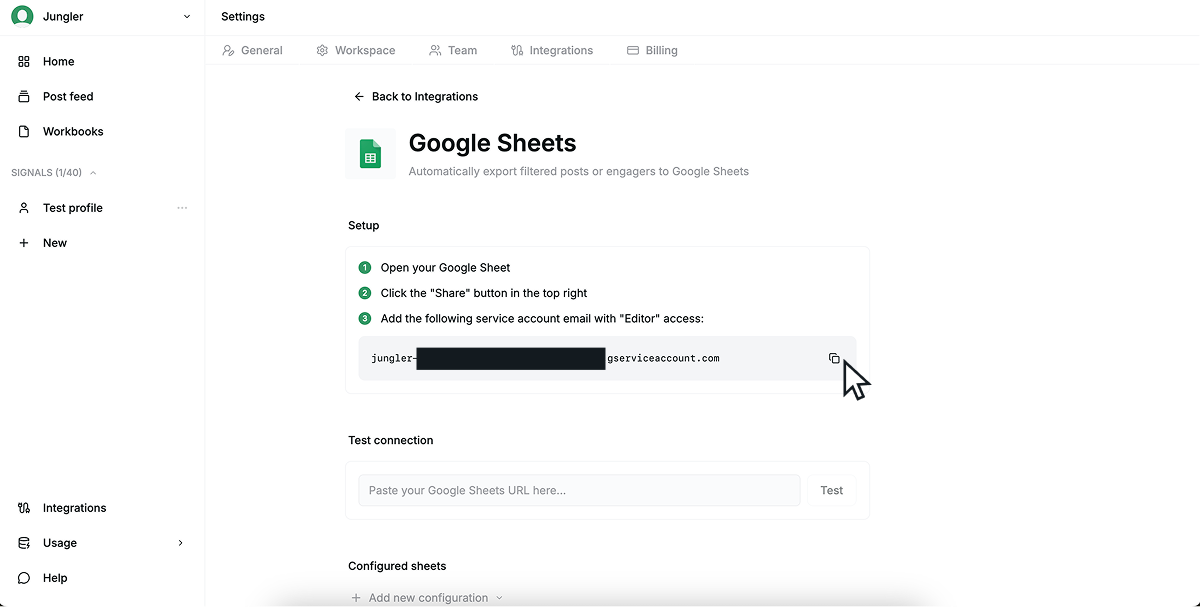
- Open your Google Sheet and click Share in the top right.
- Paste the service account email and grant it Editor access.
Testing the connection (optional)
Back on the Jungler Google Sheets page:
- Paste your Google Sheets URL under Test connection and click Test.
- Wait for the Connection successful confirmation.
Adding a configuration
Each configuration routes a set of signals to one Google Sheet tab.
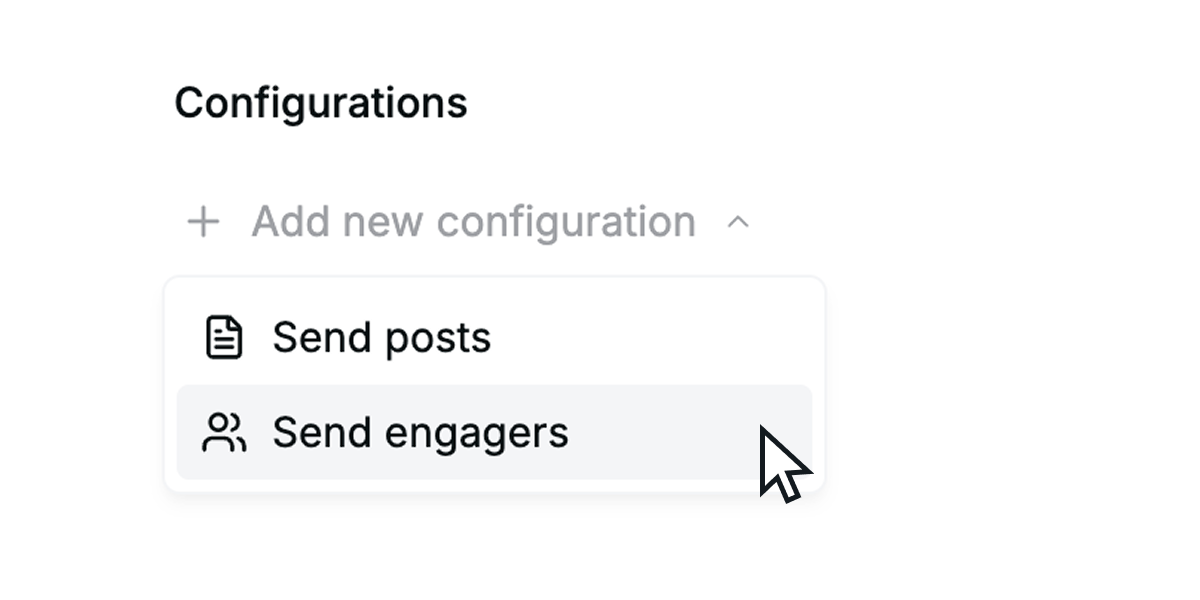
- Under Configurations, click Add new configuration and choose Send posts or Send engagers.
- Name the configuration (e.g., Hot leads).
- Paste the Google Sheets URL and enter the Sheet tab name (e.g., Sheet1).
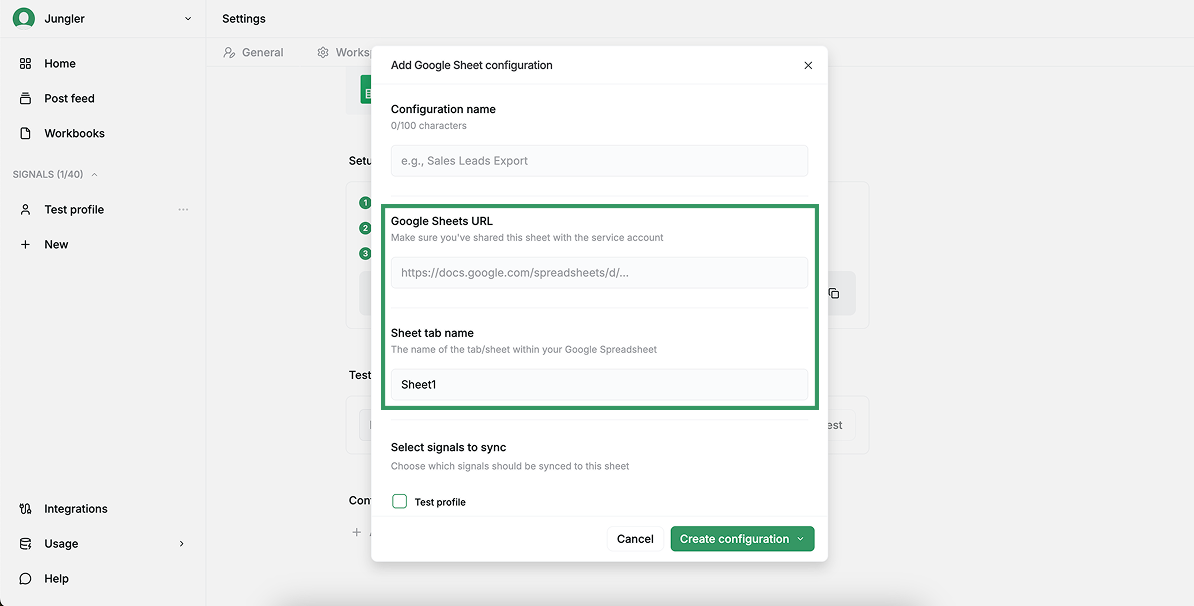
- Under Select signals to sync, tick the signals to include.
- Use Filters to narrow which contacts or posts are sent. Leave empty to send all.
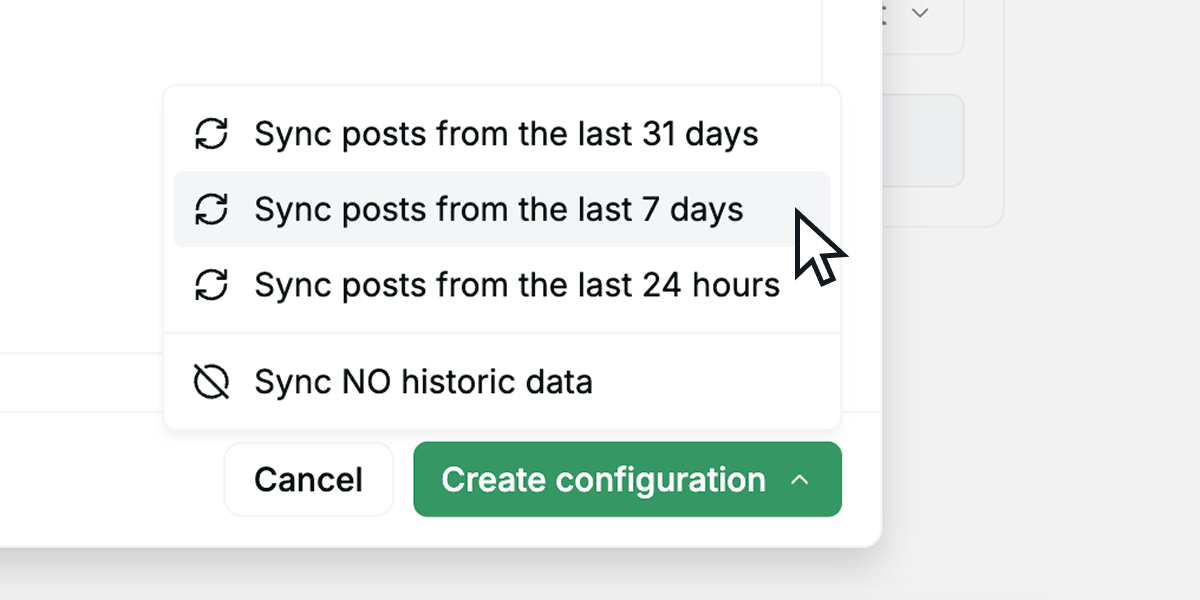
- Click Create configuration and pick a historic sync range — last 24 hours, 7 days, 31 days, or no historic data.
Repeat to route different signals to different sheets or tabs.
Email column
Email — and its paired Email status — is a column you can write to your sheet. When it's selected, a contact syncs once email finding completes (shortly after the contact is first seen); contacts whose email can't be found still sync, with a blank email. Email status distinguishes found, not_found, and pending.