 Slack
Slack
Automatically send filtered posts or engagers to Slack channels.
Connecting Slack
Open Jungler. Go to Settings > Integrations > Slack.
- Click Connect
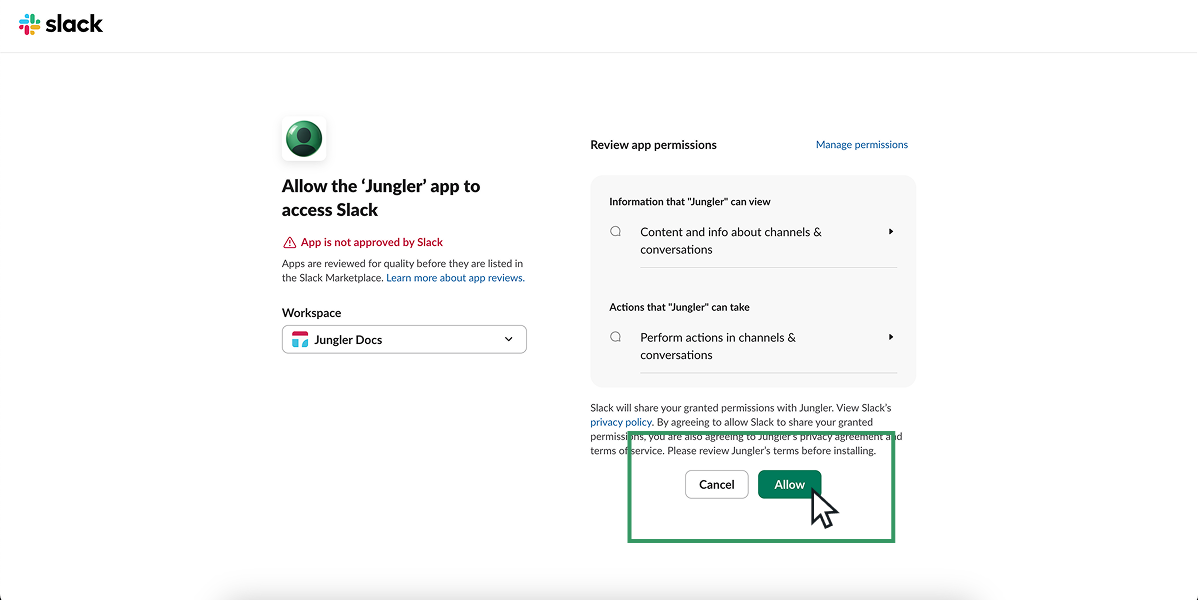
- You'll be redirected to Slack. Pick the workspace you want to connect and click Allow.
- Slack will send you back to Jungler.
Adding a configuration
Each configuration routes a set of signals to one Slack channel.
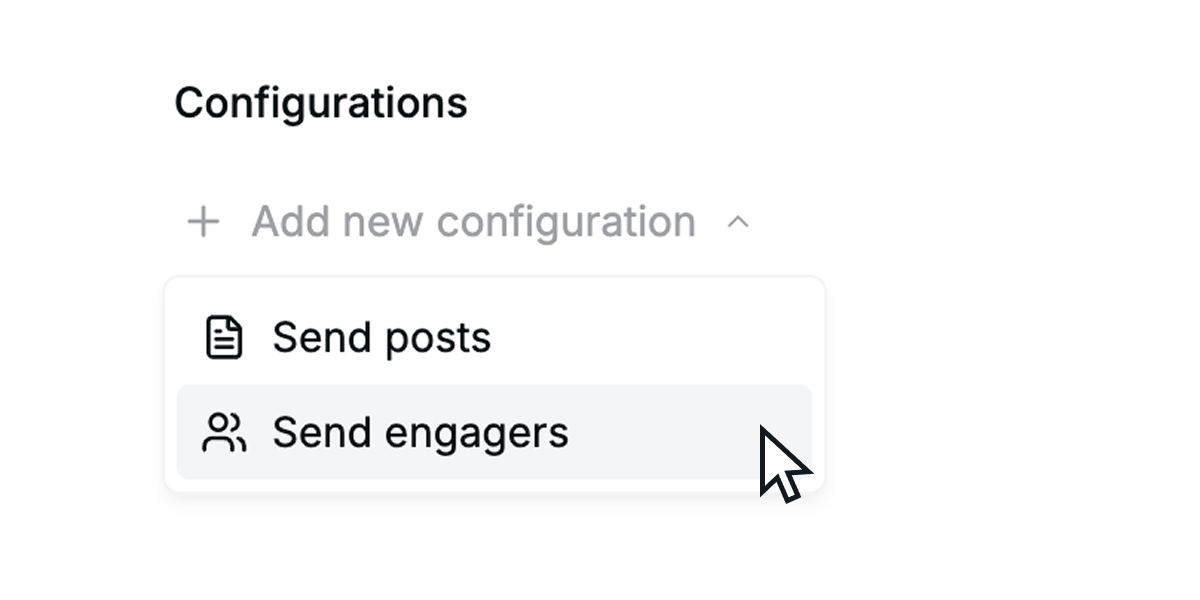
- Under Configurations, click Add new configuration and choose Send posts or Send engagers.
- Name the configuration (e.g., Product updates).
- Pick the Slack channel to send to. (If your Slack workspace has many channels, the channel list can take up to a minute to load. This is due to Slack's rate limits.)
- Under Select signals to sync, tick the signals to include.
- Use Filters to narrow which engagers or posts get sent. Leave empty to send all.
- Click Create configuration.
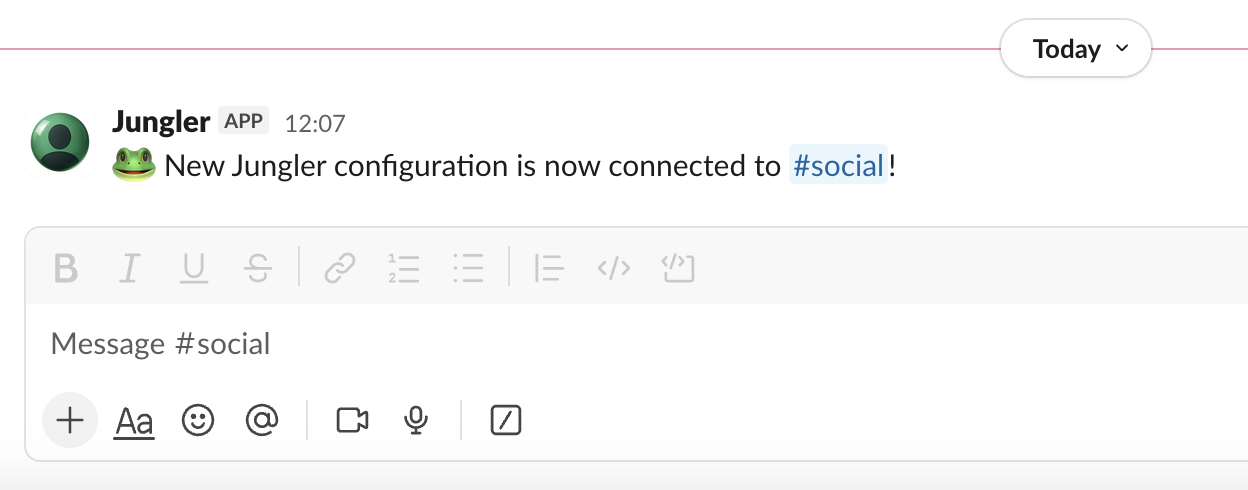
If the configuration was successful, you'll get a confirmation message in your Slack channel immediately.
Repeat to route different signals into different channels.